
What Is a PDF Sealer
A PDF sealer secures a PDF file by adding password‚ encryption‚ digital signatures‚ or permission limits. Adobe Acrobat‚ iLovePDF‚ SmallPDF‚ and PDF24 provide sealing tools that block unauthorized editing‚ copying‚ or printing while keeping the document intact. It follows ISO 32000 and PDF/UA.

Reasons to Seal a PDF File
Sealing a PDF protects sensitive information from unauthorized access‚ editing‚ copying‚ or printing. It ensures contract integrity‚ prevents tampering with invoices or legal records‚ and helps meet compliance requirements such as ISO 32000 and PDF/UA. Password security and encryption keep confidential data safe when sharing files by email or cloud storage. Digital signatures verify the author’s identity and show if a document has been altered after signing. Usage permissions let owners allow viewing while blocking changes‚ extraction‚ or printing. These controls are valuable for businesses‚ legal teams‚ healthcare providers‚ and anyone distributing official documents online.
Key benefits include protecting financial statements‚ medical records‚ contracts‚ and intellectual property from leaks. Sealing also supports audit trails‚ version control‚ and legal admissibility in court. Organizations use it to prevent accidental modifications‚ enforce confidentiality agreements‚ and restrict printing of sensitive pages. Recipients can still open and read the file when they have the correct password or certificate‚ while unauthorized users are blocked from making changes.
It also prevents data breaches‚ ensures that only authorized parties can view or modify content‚ and helps companies meet legal obligations for protecting personal information under regulations such as GDPR and HIPAA. It also supports legal industry compliance standards.

Core Methods of PDF Sealing
Core sealing methods include password protection‚ encryption‚ digital signatures‚ certificate sealing‚ and usage permissions. Adobe Acrobat‚ iLovePDF‚ SmallPDF‚ and PDF24 provide tools to restrict access‚ copying‚ printing‚ and editing. It blocks changes.
Password Protection and Encryption
Password protection locks a PDF so only people who know the correct password can open it.Encryption scrambles the file contents using algorithms such as AES‚ making the data unreadable without the proper key. Adobe Acrobat lets users set an open password and a permissions password‚ while iLovePDF‚ SmallPDF‚ and PDF24 offer similar encryption options for uploaded files. Owner passwords can restrict printing‚ copying‚ and editing‚ whereas user passwords control access to the document itself. Strong encryption prevents unauthorized viewers from extracting text or images‚ even if they obtain the file. This method is often the first layer of sealing before adding signatures or usage restrictions.
Two main password types exist: a document open password required to view the file‚ and a permissions password required to change security settings or allow printing‚ copying‚ and editing. Encryption standards such as AES-128 and AES-256 transform the PDF structure into ciphertext‚ so unauthorized parties cannot read the content even with a text editor. Removing encryption without the password is practically impossible‚ which makes this sealing method reliable for confidential reports‚ contracts‚ and forms. Users should store passwords securely because losing them usually means losing access to the sealed PDF permanently. Always choose a complex password with letters‚ numbers‚ and symbols‚ and store it in a trusted password manager for safety.
Digital Signatures and Certificate Sealing
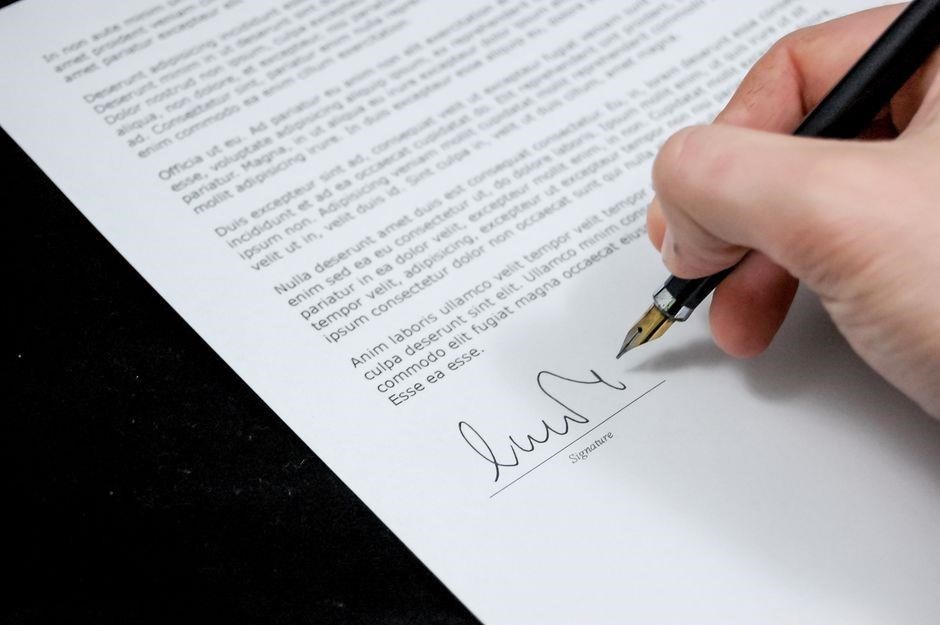
A digital signature binds a signer’s identity to a PDF using a digital certificate issued by a trusted certificate authority. Unlike a scanned image of a handwritten signature‚ it relies on public key infrastructure to generate a unique cryptographic hash of the entire document. Any modification to the sealed PDF after signing invalidates the signature‚ making tampering immediately detectable. Certificate sealing embeds the signer’s certificate chain directly into the PDF‚ so recipients can verify authenticity without contacting the issuing authority. Tools such as Adobe Acrobat support visible and invisible signatures‚ trusted timestamping‚ and validation against certificate revocation lists. This sealing method suits contracts‚ legal filings‚ and official records where proof of origin and document integrity outweigh simple access control. A digital certificate contains the signer’s public key‚ name‚ email‚ expiration date‚ and the issuing authority’s digital signature. When a user seals a PDF‚ the software hashes the document and encrypts that hash with the signer’s private key. Recipients decrypt the hash using the public key and compare it to a newly generated hash of the received file. If the values match‚ the document is authentic and unchanged. Certificate revocation lists and online certificate status protocol checks confirm that the signing certificate has not been revoked. It enables long-term validation‚ today.
Usage Permissions and Restrictions
Usage permissions let the PDF owner control what recipients can do with a sealed file. Common restrictions include disabling printing‚ blocking copying of text and images‚ preventing page extraction‚ and prohibiting form field filling or commenting. The owner can also allow only specific actions‚ such as signing adding annotations‚ while locking everything else. These permissions are enforced through encryption flags embedded in the PDF security settings. When a user opens the file in a compliant viewer‚ the application checks the permission bits and disables unauthorized features in the interface. Adobe Acrobat‚ iLovePDF‚ SmallPDF‚ and PDF24 support setting owner and user passwords‚ where the owner password controls permission changes and the user password controls opening the document. Permission restrictions do not encrypt the content itself unless combined with encryption‚ so determined attackers with specialized tools may still extract text. For strong protection‚ combine usage restrictions with password encryption and digital signatures. This approach suits corporate policies‚ confidential reports‚ and shareable forms that must remain viewable but not editable or printable by unauthorized parties.
These settings travel with the PDF and are honored by most desktop and mobile viewers‚ though some third-party apps may ignore them.
Owners can later remove restrictions only if they know the owner password now today.

Sealing PDFs with Adobe Acrobat
Adobe Acrobat lets you seal PDFs with passwords‚ encryption‚ and digital signatures directly in your browser or desktop app. Use Protect tools to restrict editing‚ copying‚ and printing while preserving document integrity. It supports certificate sealing
Applying Password Security in Adobe Acrobat
Open your PDF in Adobe Acrobat Pro or Acrobat online and choose the Protect menu. Select Encrypt with Password to require a document open password that blocks anyone without the correct key from viewing the file. You can also set a permissions password to control printing‚ copying‚ editing‚ and commenting. Choose AES 256-bit encryption for strong protection‚ then save the secured PDF. Adobe Acrobat Reader lets recipients open the file only after entering the correct password.
To apply password security‚ open the file in Adobe Acrobat Pro DC‚ click File‚ choose Properties‚ then select the Security tab. Pick Password Security from the Security Method dropdown. Enter a strong open password and confirm it. Select Compatibility such as Acrobat X and later‚ which uses AES 256-bit encryption. Check the option to require a password to open the document. Click OK‚ save the file‚ and test that the password prompt appears before the content is displayed.
Remember that Adobe Acrobat cannot recover a lost open password‚ so store credentials safely. The encrypted PDF remains readable only in Acrobat Reader or compatible viewers after the correct password is entered. You can remove security later by entering the permissions password and choosing No Encryption in the Security tab.
Tip: Use a mix of uppercase‚ lowercase‚ numbers‚ and symbols for a strong PDF open password.
Store it in a password manager. Backup it.
Adding Digital Signatures in Adobe Acrobat

Open the PDF in Adobe Acrobat Pro DC and choose the Fill & Sign tool or the Certificates panel. Click Digitally Sign‚ then select Add Digital Signature. Draw a signature field where you want the seal to appear. Choose a digital ID from your certificate store or create a new self-signed ID. Enter the PIN or password for the digital ID‚ then click Sign; Acrobat embeds the certificate‚ locks the document against changes‚ and shows a blue ribbon signature panel.
To verify the signature‚ open the signed PDF in Adobe Acrobat Reader. The Signature Panel displays signer name‚ certificate issuer‚ signing time‚ and document integrity status. If the file was altered after signing‚ Acrobat warns that the document has been modified. You can also validate the certificate chain through the Trust Settings menu.
Steps:
Open PDF in Adobe Acrobat Pro.
Go to Tools > Certificates > Digitally Sign.
Place the signature field.
Select your digital ID and enter its password.
Click Sign and save the sealed PDF.
Timestamps from a trusted authority prove the signing time. Even if the certificate expires later‚ the signed PDF stays valid when the timestamp can be checked. It uses PKI for trust ok.

Sealing PDFs with Free Online Tools
Free online services such as iLovePDF‚ SmallPDF‚ and PDF24 let you protect PDFs without installing software. Upload your file‚ add password encryption or permissions‚ then download the sealed document. These tools support encryption and usage limits.
Using iLovePDF to Protect PDFs
iLovePDF is a completely free and easy-to-use online service for working with PDF files. To protect a document‚ open the Protect PDF tool in your browser‚ upload the file you want to seal‚ and enter a strong password. The platform applies encryption so that only recipients who know the password can open the file. You can also choose permissions that prevent printing‚ copying‚ or editing without authorization. After you confirm the settings‚ iLovePDF processes the document and lets you download the sealed PDF immediately. No software installation is required‚ and the tool works on Windows‚ Mac‚ Linux‚ Android‚ and iOS. Your files are handled over a secure connection and are removed from the server after a short period. This makes iLovePDF a convenient option for quickly sealing PDFs for personal or business use. You can process multiple files at once by selecting them together before applying the same password. The interface is available in several languages‚ so users from different countries can navigate it easily. There is no watermark added to the protected PDF‚ and the original layout remains unchanged. If you forget the password‚ the document cannot be recovered‚ so keep it in a safe place. iLovePDF also lets you unlock PDFs if you know the current password‚ making it simple to manage access later. All processing happens in the cloud‚ which saves computer resources and lets you seal files from any device with internet access.
Encrypting Files with SmallPDF
SmallPDF lets you edit PDF for free on any device and convert any file to or from PDF with high quality. To encrypt a PDF‚ open the Protect PDF tool‚ upload your document‚ and type a strong password. The service applies encryption that blocks unauthorized opening‚ printing‚ copying‚ or editing. You can set permissions so recipients need the password to make changes. After processing‚ download the sealed file immediately. No installation is required‚ and the tool runs in your browser on Windows‚ Mac‚ Android‚ or iOS. Files are transferred over a secure connection and deleted from the server after a short time. Keep your password safe because losing it means the document cannot be recovered. SmallPDF also lets you unlock a PDF if you know the current password‚ so you can adjust access later. The original layout stays intact‚ and no watermark is added to the protected file.SmallPDF also supports batch encryption‚ so you can protect several PDFs with one password in a single operation. The service uses strong encryption to keep your data safe while it travels over the internet and while it sits on the server. Encrypted PDFs can still be opened in any standard PDF viewer‚ but the correct password is required to view or modify them. If you ever need to remove the password‚ the Unlock PDF tool lets you do that quickly. No watermark is added‚ and the original layout‚ fonts‚ and images remain unchanged. No installation is required in your browser.
Sealing PDFs with PDF24 Tools
PDF24 offers free online and offline solutions for all PDF problems‚ including sealing documents against unauthorized access. Open the Protect PDF tool‚ upload your file‚ and enter a password to encrypt the PDF. You can restrict printing‚ copying‚ and editing so only people with the correct password can open or modify the document. The original layout‚ fonts‚ and images stay intact‚ and no watermark is added. PDF24 works in any browser on Windows‚ Mac‚ Linux‚ Android‚ or iOS‚ and a desktop version is available for offline use. Files are processed over a secure connection and removed from the server after a short time. If you forget the password‚ the sealed PDF cannot be recovered‚ so store it safely. You can also unlock a protected PDF later if you know the current password. PDF24 also provides a desktop application called PDF24 Creator for Windows‚ which lets you seal PDFs without uploading files to the internet. You can combine multiple files into one protected PDF‚ add a password‚ and set permissions for printing‚ copying‚ or form filling. The interface shows a toolbox with encryption options‚ and you can save profiles for repeated use. Online‚ PDF24 processes files over HTTPS and deletes them automatically after a few hours. No registration is required‚ and the service does not add visible watermarks to sealed documents. You can protect contracts‚ invoices‚ or personal records before sharing them by email or cloud storage. Keep safe.

PDF Standards for Sealed and Accessible Documents
PDF sealing follows ISO 32000-1‚ the base specification for PDF documents. Accessible sealed files use PDF/UA‚ published as ISO 14289-1 in 2012‚ which ensures people with disabilities can read protected content using assistive technology. Encryption and digital signatures must not block tags‚ reading order‚ or alternative text. Standards also cover PDF/A for long-term preservation and PAdES for advanced electronic signatures. Compliant sealers keep metadata intact while restricting copying‚ printing‚ or editing; Verification tools check signature validity‚ certificate trust‚ and accessibility compliance before opening a sealed PDF.
ISO 32000-1 defines the PDF format structure‚ encryption dictionary‚ and signature handlers. PDF/UA requires tagged content‚ logical reading order‚ and descriptive alt text so screen readers can access sealed files. PDF/A ensures long-term visual consistency by embedding fonts and disabling encryption that prevents rendering. PAdES specifies signature formats that remain valid over time and support timestamping. Sealing tools must apply permissions without removing structural tags. Accessibility checkers verify contrast‚ language tags‚ and form field descriptions. Digital certificates bind identity to the document‚ while encryption keys protect content from unauthorized extraction. Together‚ these standards create sealed PDFs that are secure‚ verifiable‚ and usable by everyone. For all!
Opening and Verifying Sealed PDFs
Open a sealed PDF with Adobe Acrobat Reader or a compatible viewer. Type the password when encryption is active. The program validates digital signatures using trusted certificate authorities and shows the signature status. Verification proves the file has not changed since it was sealed. Permission flags control printing‚ copying‚ and editing. Timestamp authority evidence confirms the signing time. Expired or untrusted certificates trigger a warning. Accessible readers keep document tags while enforcing security restrictions.

Users can verify seal integrity through the Signatures panel in Adobe Acrobat Reader. Clicking a signature shows certificate details‚ issuer name‚ and validity period. Document restrictions appear in the Security tab‚ indicating whether copying or printing is allowed. Long-term validation relies on embedded timestamps and revocation lists. If verification fails‚ the file may still open but with limited functionality or a red warning icon.
Verification results appear in a blue banner or signature panel. Trusted certificates show a green checkmark‚ while unknown issuers display a question mark. Users can export signature reports for legal records. Sealed files remain readable in free viewers‚ but editing requires the owner password or permissions password.
Open sealed PDFs in Adobe Acrobat Reader. Verify signatures before printing or copying content from the protected file. Check the PDF now.